Overview
This article is to assist with the setup of Medical Objects and Direct Control
Requirements
| Warning |
|---|
|

Configuring Capricorn Software
Accessing the Capricorn Configuration Window
In some cases, the Capricorn may be configured as a service. See this guide for instructions on how to launch the Capricorn if it is set up as a service.
| Excerpt Include | ||||||
|---|---|---|---|---|---|---|
|
Capricorn Configuration Settings
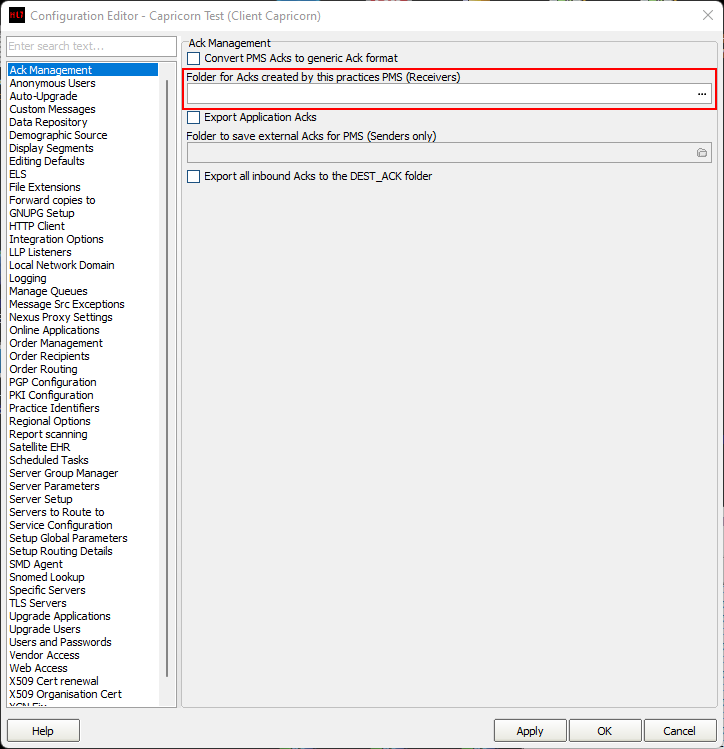
- Click on Ack Management. Set the Folder for Acks created by this practices PMS (Receiver) to the HL7 Out path in the walkthrough here: HL7Out
- Click on Integration Options.
3.1 Check that the Incoming Modifier is set to Direct CONTROL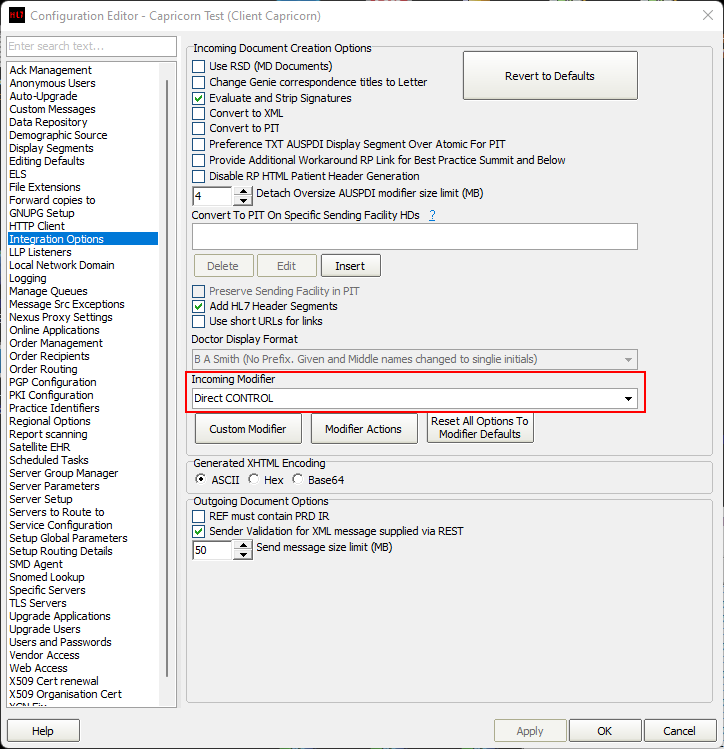
Select Server Parameters from the left panel.
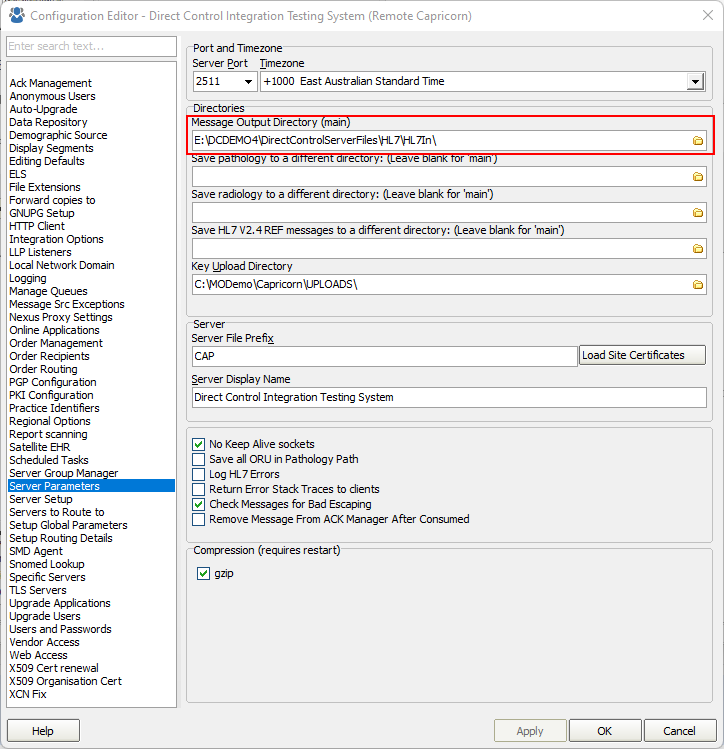
The paths above are set as follows:No Format (Capricorn installed on a Direct CONTROL Server Machine) --> E:\InstallFolder\DirectControlServerFiles\HL7\HL7In\ (Capricorn installed on a Direct CONTROL Client Machine) --> \\server\InstallFolder\DirectControlServerFiles\HL7\HL7In\
If the folder does not exist, You must create it.
- The Medical-Objects configuration is complete. Click Apply and OK.
Direct CONTROL Import Configuration
In Direct CONTROL navigate to Utilities → Configure
HL7 In
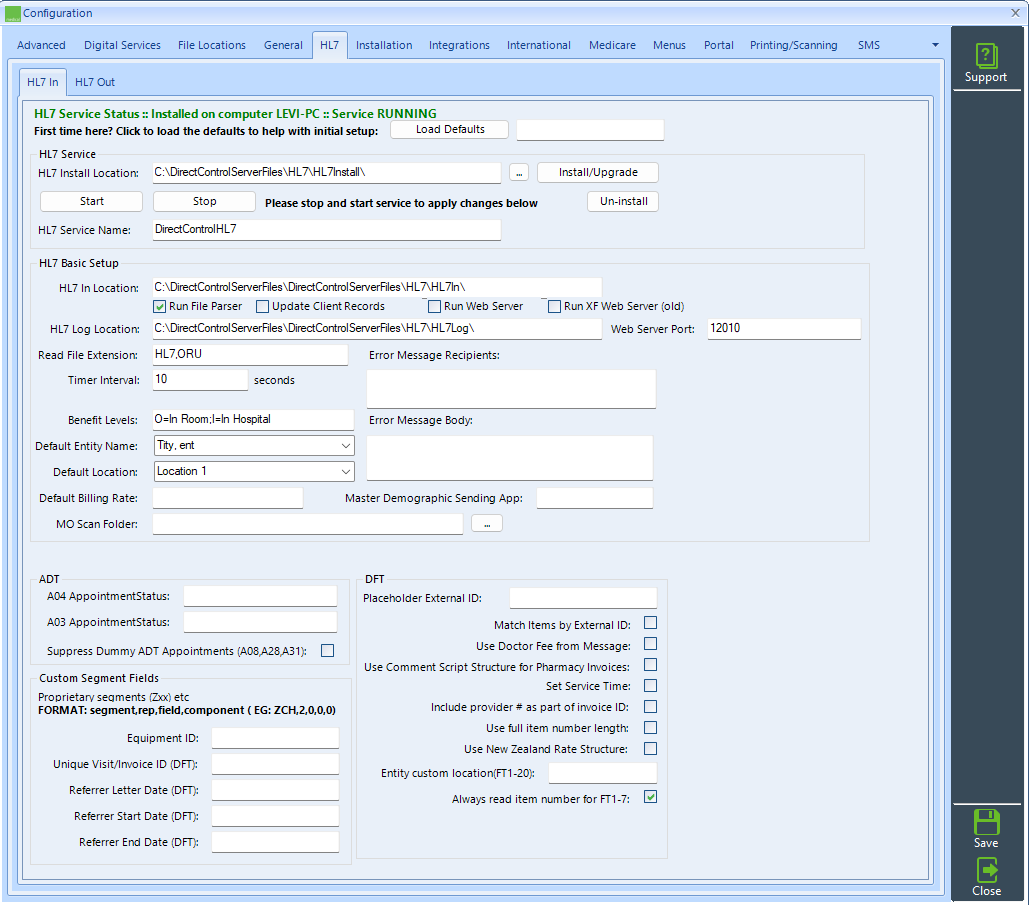
If paths are not populated click "Load Defaults" then "Install/Upgrade"
Change settings as required.
Set the download path in HL7 In Location as the first setting in HL7 Basic Setup.
Select "Start" button
HL7 Out
| Warning |
|---|
| This is currently only for return acknowledgements sending messages directly from Direct CONTROL has not been finalised. |
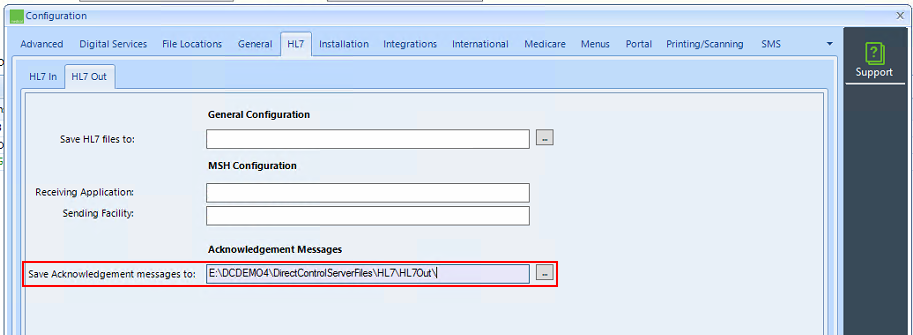
Set the "Save Acknowledgement messages to:" path.
Inbox
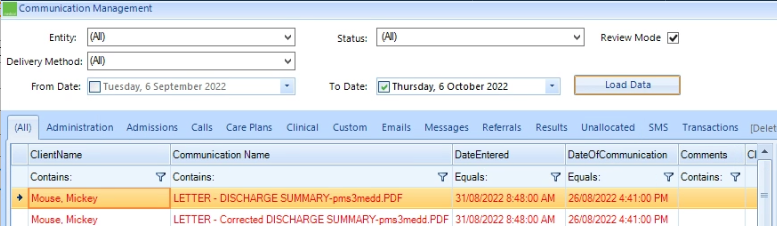
Regular Tasks --> Communications/Results
| Warning |
|---|
| If Direct CONTROL was not able to find a match for an existing Client, the documents will appear in the Unallocated tab. |
| Table of Contents | ||||
|---|---|---|---|---|
|